Final Cut Pro has a free, built-in AI transcription feature called Transcribe to Captions that can generate subtitles automatically from your video's audio — no third-party plugins needed. Here's how to use it, and why Subtitle Studio is worth considering if you need higher accuracy, translation, or dual-language subtitles.
Method 1: Final Cut Pro's Free Built-in Transcription
Requirements: Mac with Apple silicon (M1 or later) and macOS Sequoia or later. Currently supports English audio only.
Step 1: Open Your Project in Final Cut Pro
Launch Final Cut Pro and open the project you want to subtitle. Make sure your main video clip is placed in the timeline before proceeding.
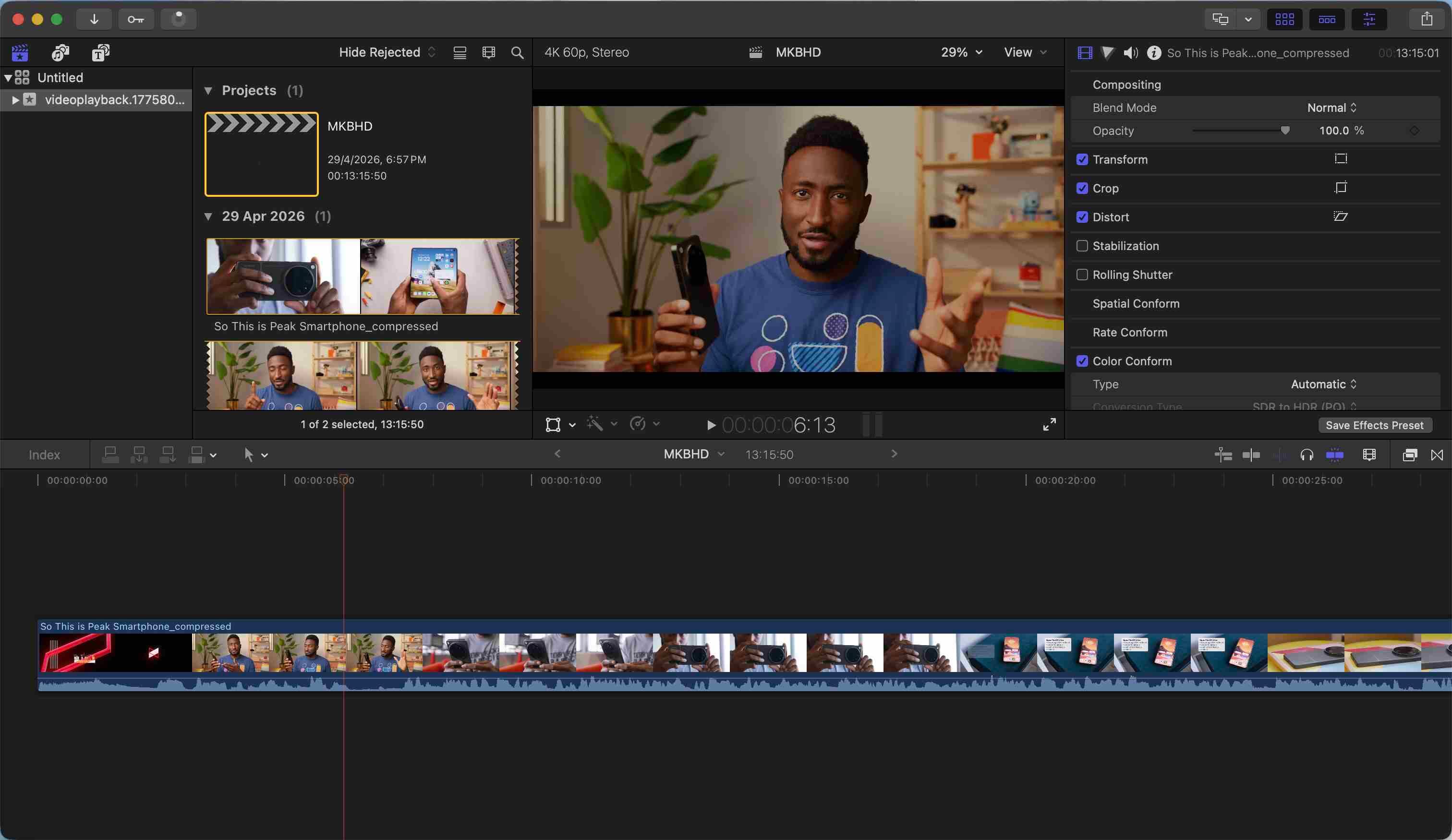 Final Cut Pro timeline with a video project open and ready to transcribe
Step 2: Select Your Clip(s) and Start Transcription
In the timeline, click to select the clip or clips that contain the spoken audio. You can select multiple clips at once — Final Cut Pro will transcribe them all in sequence. Then do one of the following to start:
- Right-click the selected clip(s) and choose Transcribe to Captions
- Go to Edit → Captions → Transcribe to Captions
- Press Shift + Command + C
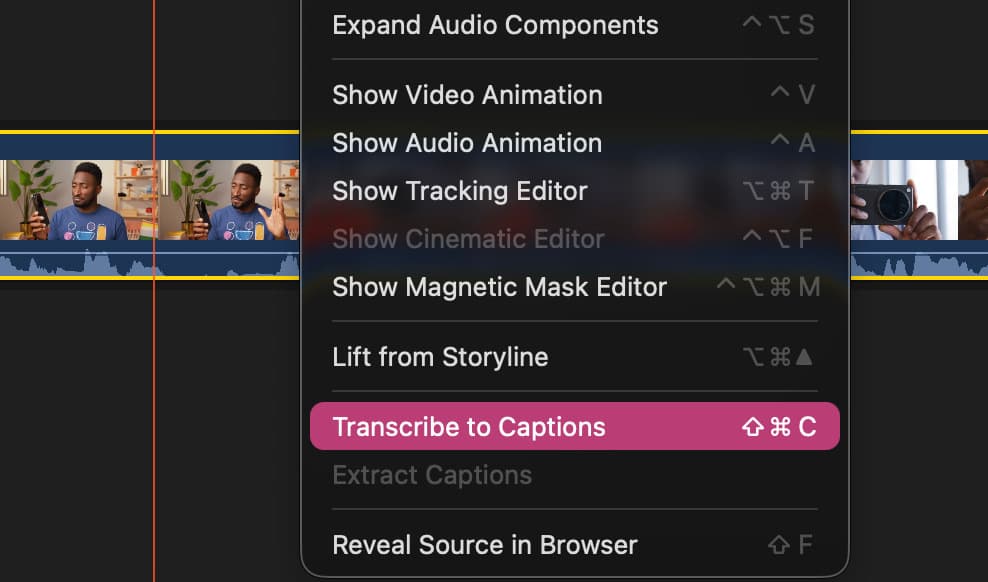 Final Cut Pro right-click context menu showing the Transcribe to Captions option with clips selected
First time? Final Cut Pro will download a language model before transcribing. This only happens once and requires an internet connection.
Step 3: Wait for Transcription to Complete
Final Cut Pro will process each clip and automatically generate caption clips connected to the source audio. A progress indicator will appear — transcription typically takes a fraction of the clip's actual length.
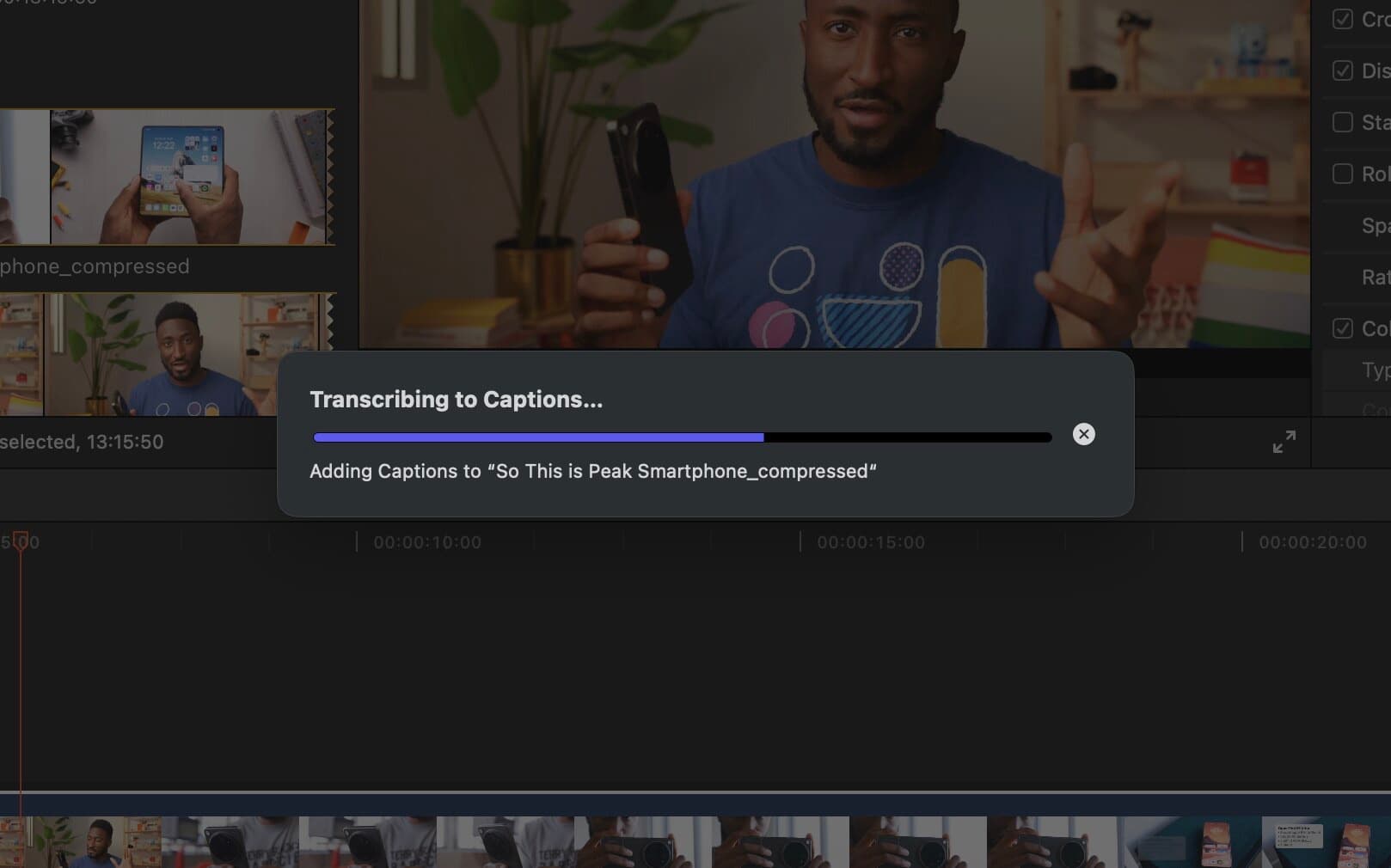 Final Cut Pro showing a progress bar while Transcribe to Captions is running
Step 4: Review Your Captions in the Timeline
Once complete, a dedicated captions lane will appear above your primary storyline in the timeline. Each caption clip is already timed to the spoken audio. Skim through the timeline to spot any errors.
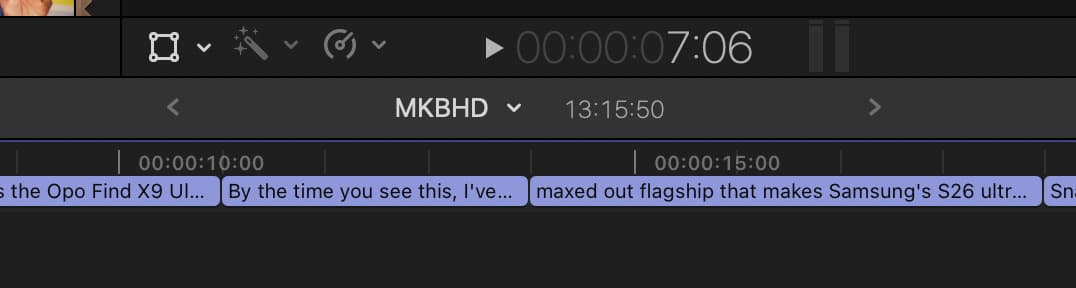 Final Cut Pro timeline with a captions lane showing auto-generated caption clips
Step 5: Edit Any Inaccuracies
Double-click any caption clip in the timeline to open the caption editor and correct the text. You can also drag caption edges to fine-tune timing.
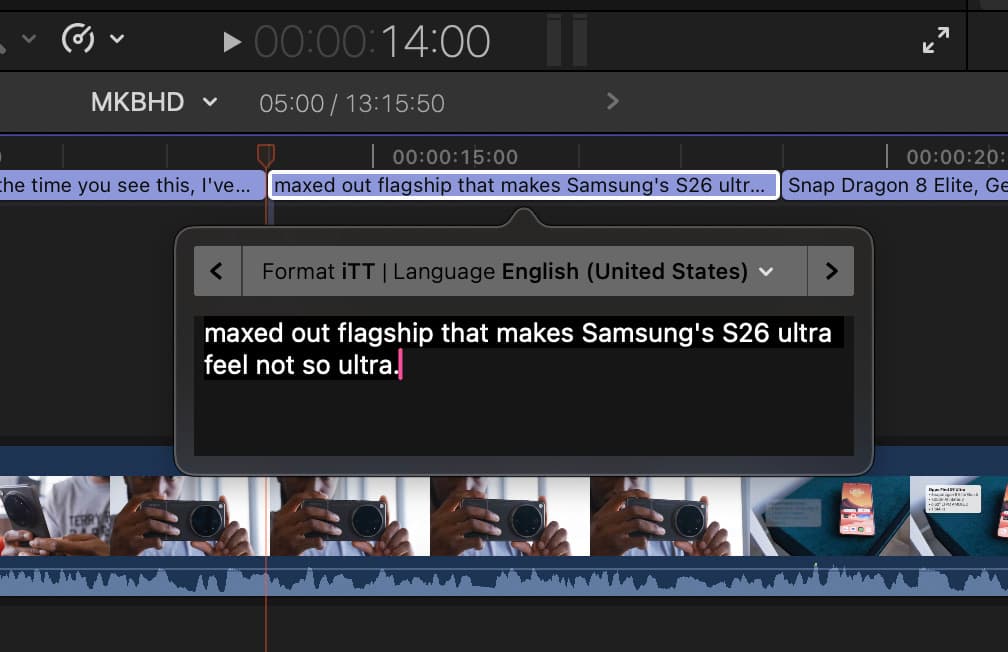 Final Cut Pro caption editor open with text being corrected
Step 6: Style Your Captions
Click any caption, then use the Inspector → Caption panel to adjust font, size, colour, and position. Keeping a consistent style throughout looks clean and professional.
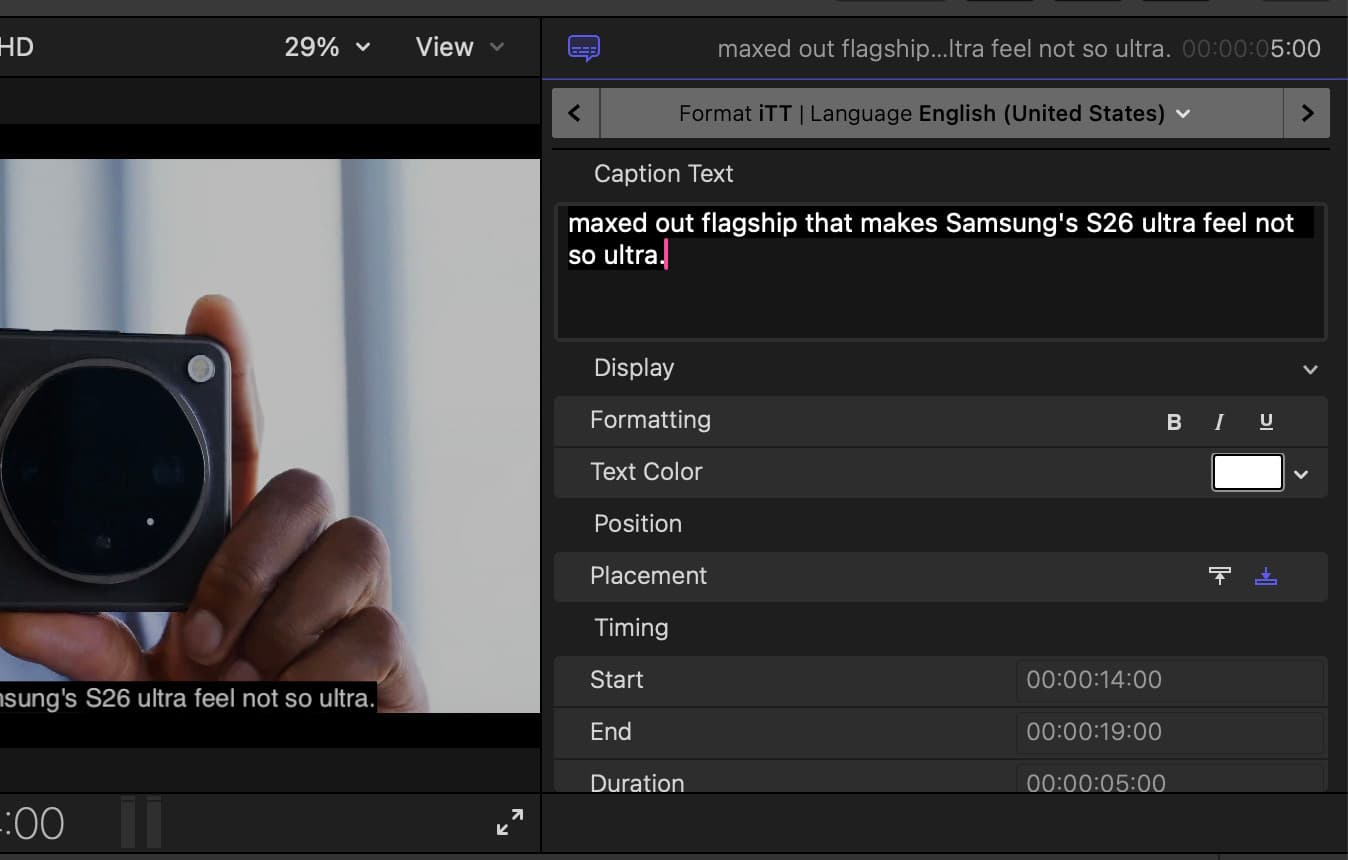 Final Cut Pro Caption inspector with font and colour styling options highlighted
Step 7: Export with Captions
Go to File → Share → Master File (or your preferred export preset). In the Roles tab, make sure your captions track is included. You can burn captions into the video or export them as a separate SRT/iTT file.
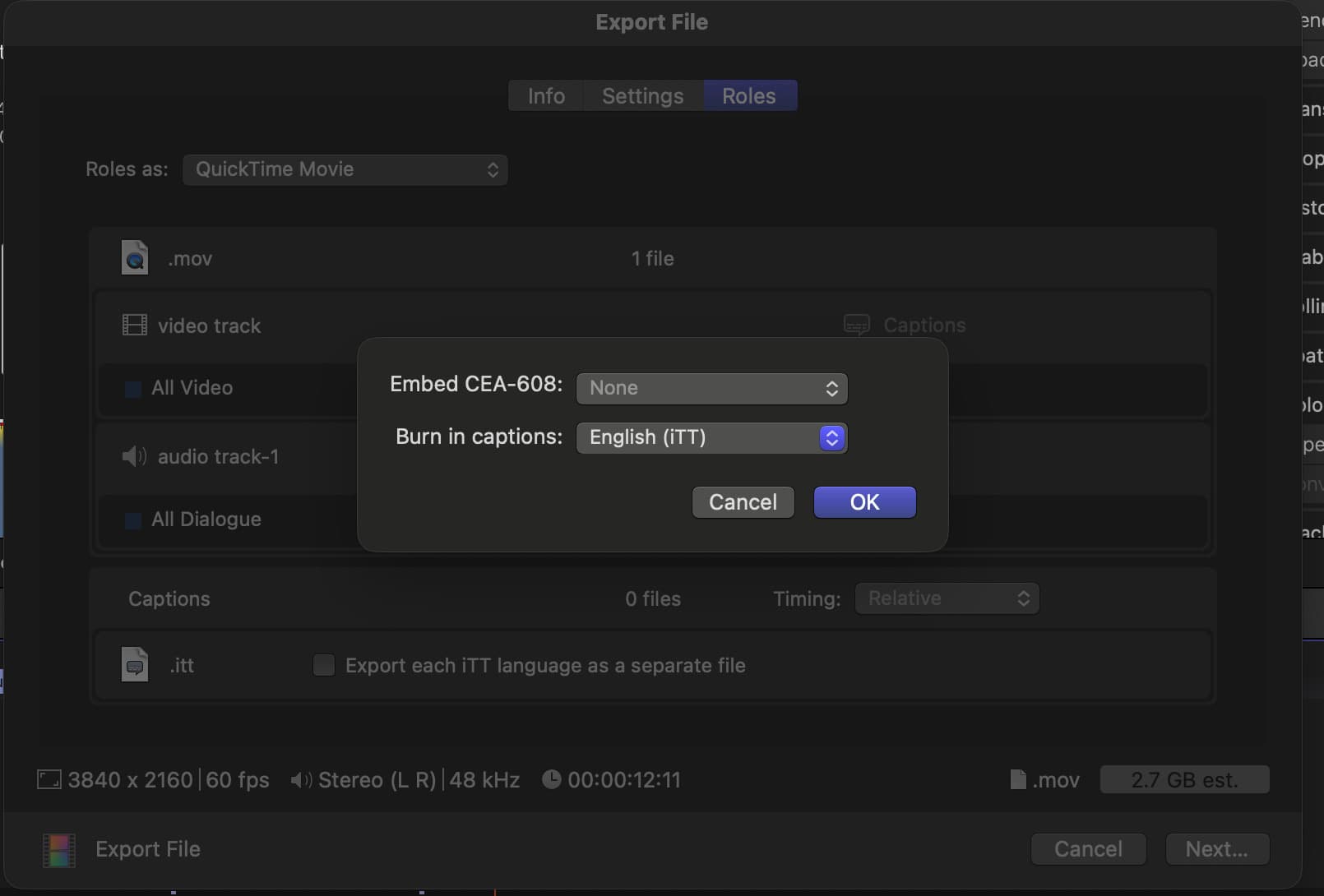 Final Cut Pro export dialog with Roles panel showing the captions track enabled
Method 2: Generate Subtitles with Subtitle Studio (Better Quality, Easier Editing, Translation)
Final Cut Pro's built-in transcription is a great starting point — but it has real limitations. It only supports English, the accuracy can drop with accents or background noise, and editing dozens of captions directly in the timeline is tedious. Subtitle Studio solves all of this.
Why Subtitle Studio is Better
Higher transcription accuracy — Subtitle Studio uses Whisper AI, which consistently outperforms Final Cut Pro's built-in model, especially for non-standard accents, fast speech, and audio with background noise.
Designed for editing — Instead of clicking tiny caption clips in a timeline, Subtitle Studio gives you a clean, dedicated subtitle editor where you can review, fix, and reformat every line in one place. Split, merge, and adjust timing with purpose-built controls.
Translation and dual subtitles — This is the feature Final Cut Pro simply can't offer. Subtitle Studio can translate your subtitles into another language and create dual-language subtitles — showing both the original and the translation simultaneously. Perfect for content targeting international audiences.
Supports all languages — Final Cut Pro's transcription is English-only. Subtitle Studio transcribes and translates across dozens of languages.
Step 1: Generate Subtitles in Subtitle Studio
Import your video into Subtitle Studio and click Generate Subtitles. The on-device Whisper AI will produce an accurate, time-coded subtitle file — no cloud upload required.
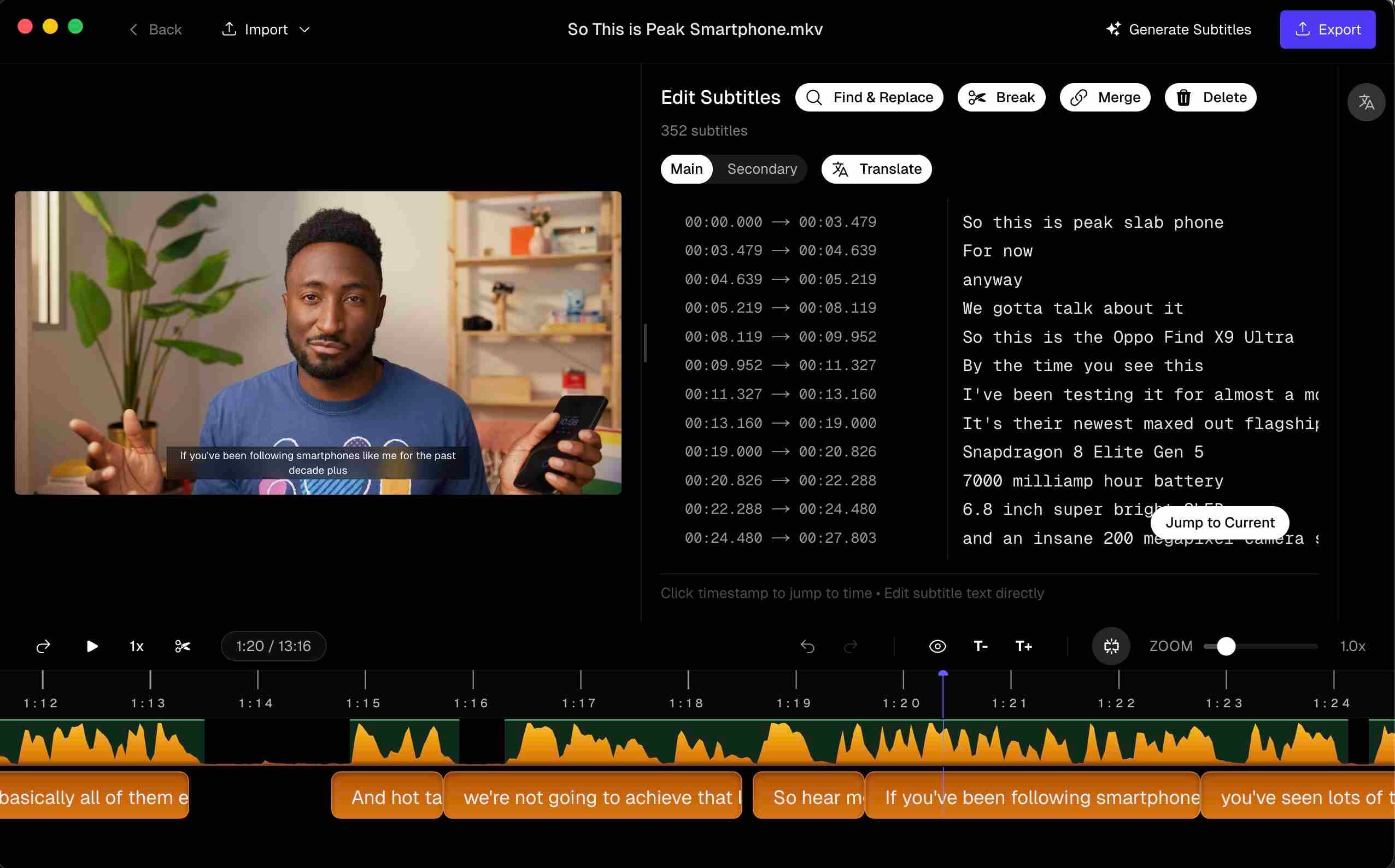 Subtitle Studio showing completed subtitle generation with subtitles ready for review
Step 2: Edit in the Dedicated Subtitle Editor
Review each subtitle line in Subtitle Studio's editor. Fix errors, adjust timing, split long lines, and clean up formatting — all without touching the Final Cut Pro timeline.
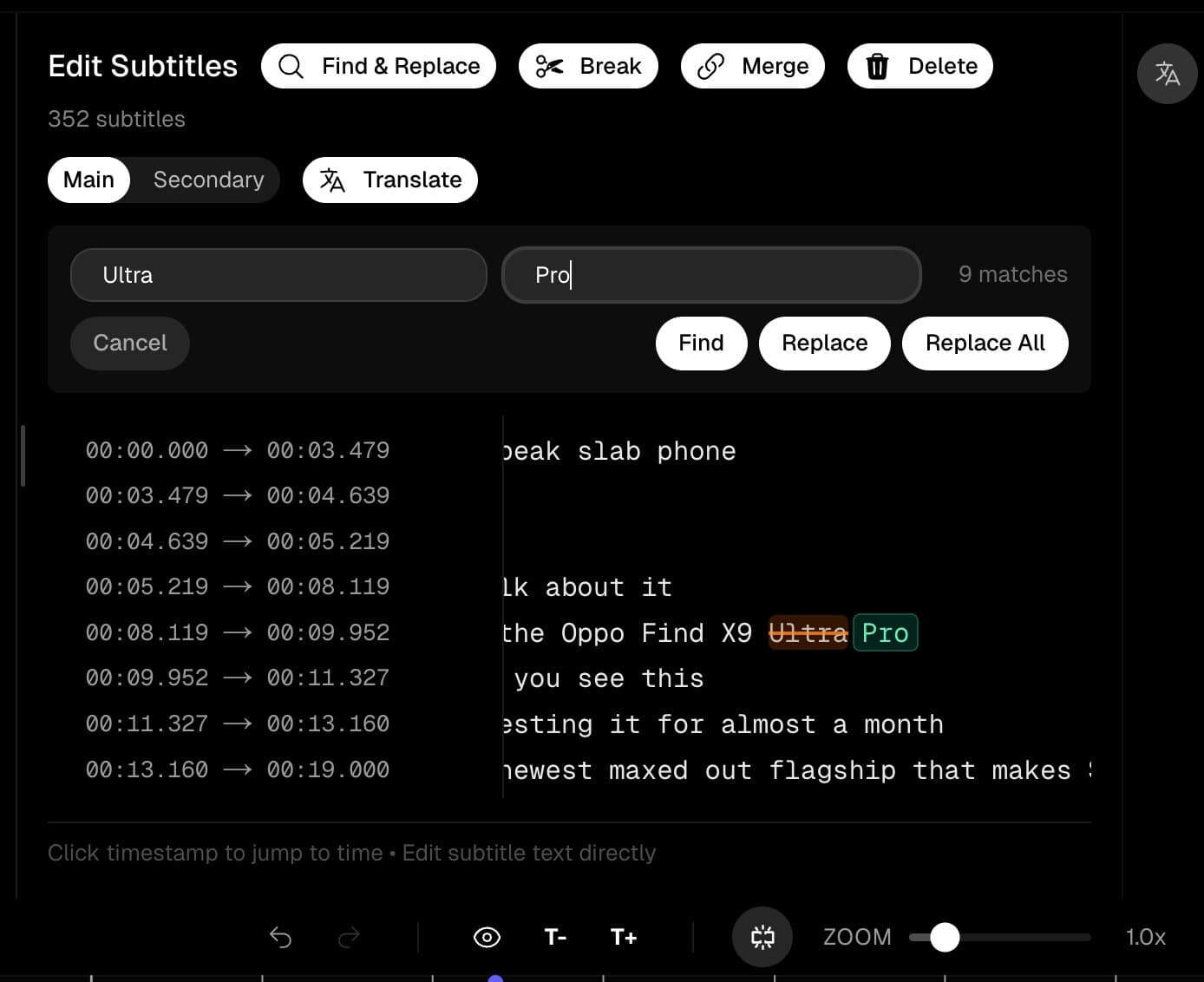 Subtitle Studio editor showing individual subtitle lines with editing controls
Step 3: Translate and Enable Dual Subtitles (Optional)
Use Subtitle Studio's translation feature to generate a translated version of your subtitles. You can choose to display both languages at once as dual-language subtitles, ideal for bilingual audiences or language learners.
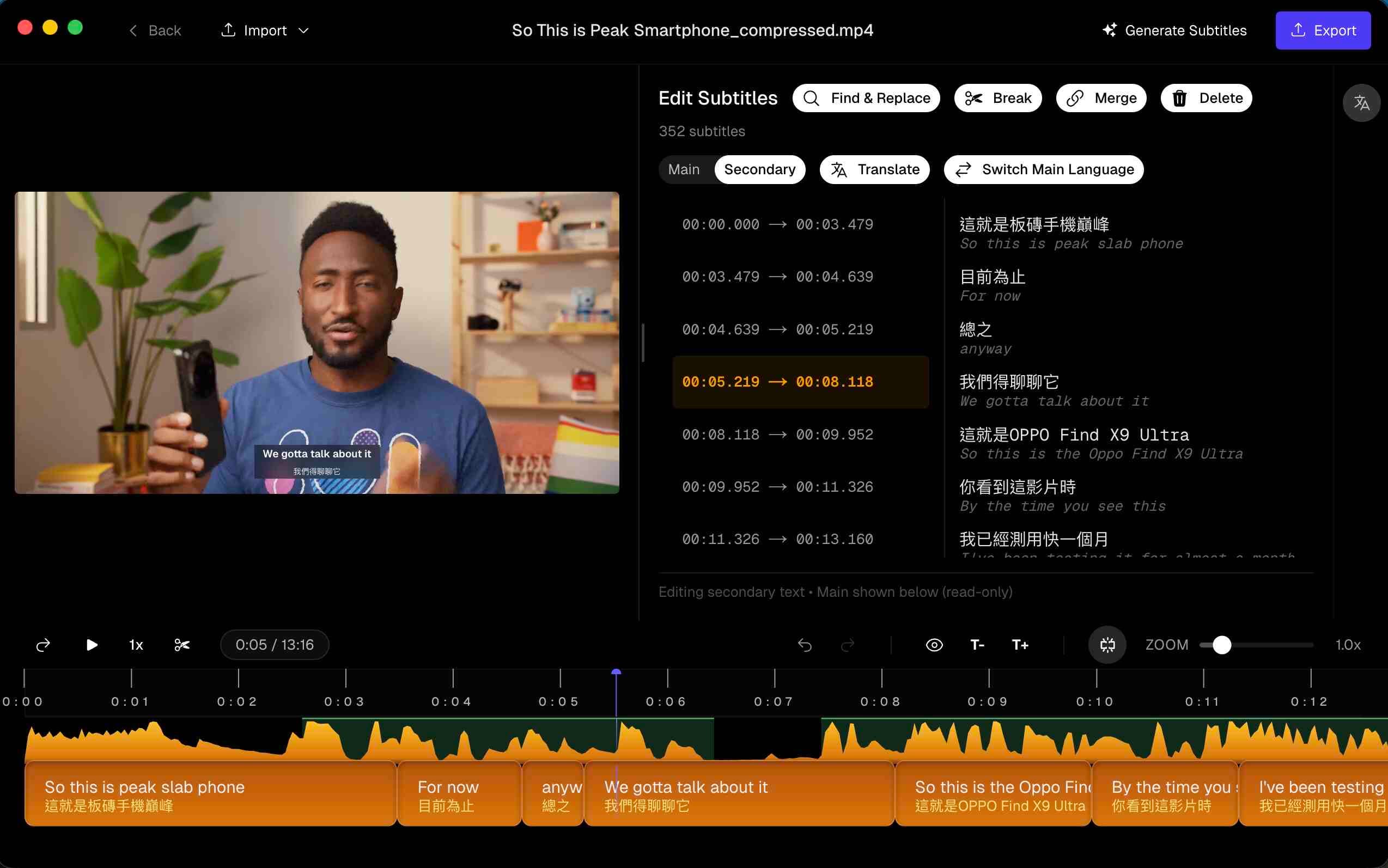 Subtitle Studio showing dual-language subtitle output with original and translated text
Step 4: Export and Import into Final Cut Pro
Export the SRT file from Subtitle Studio. In Final Cut Pro, go to Edit → Captions → Import Captions and select your file. Final Cut Pro places all captions in the timeline with correct timing automatically.
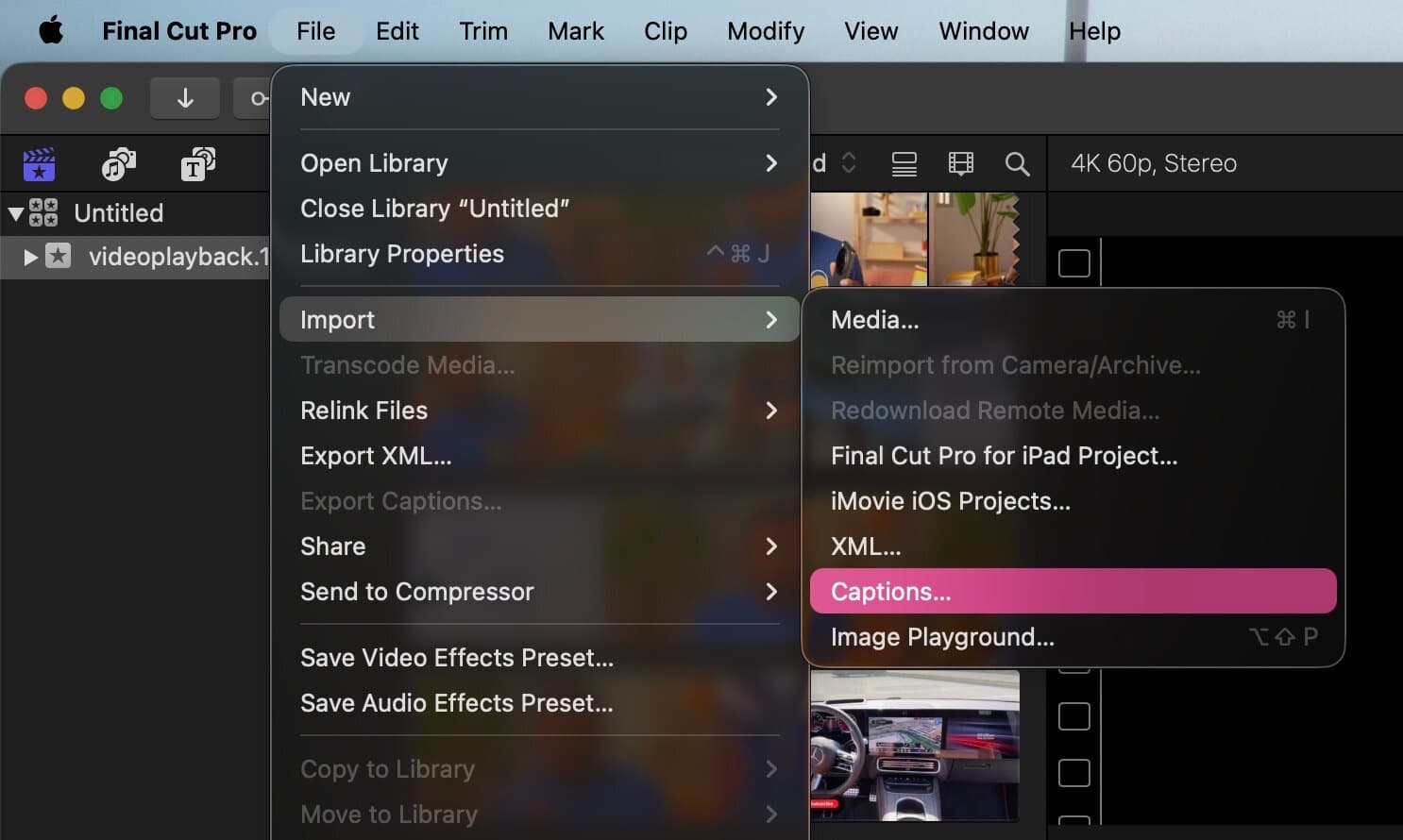 Final Cut Pro Import Captions dialog with an SRT file selected
Tips for Professional-Looking Captions in Final Cut Pro
- Two lines maximum — keep captions to two lines of text for readability
- Safe zone awareness — keep text within the title-safe area to avoid cut-off on TV displays
- Consistent timing — captions shorter than 1 second are hard to read; aim for at least 1.5 seconds
- Proofread on export — always watch through the final export with captions visible before delivery
Conclusion
Final Cut Pro's free Transcribe to Captions feature is genuinely useful for English content on Apple silicon Macs — it's fast, free, and integrates directly with your timeline. For anything more demanding — non-English content, noisy audio, translation needs, or just a smoother editing experience — Subtitle Studio gives you meaningfully better results and a workflow that doesn't feel like a chore.
Working in DaVinci Resolve instead? See How to auto-generate subtitles for DaVinci Resolve on Mac.
Try Subtitle Studio for free
One-time purchase. No subscription. Runs fully offline on your Mac.
