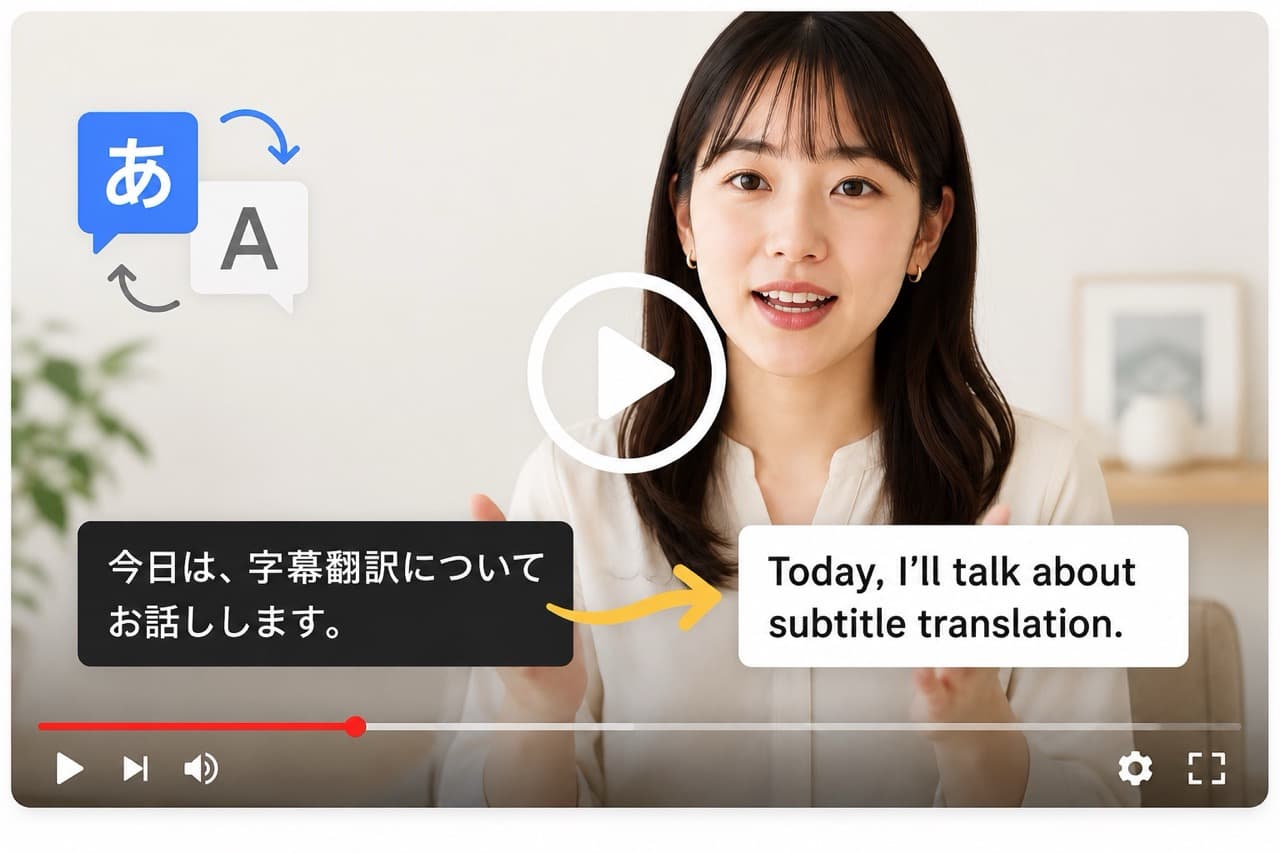
If you translate video subtitles — whether for YouTube, social clips, client deliverables, or internal review — you've probably hit the same friction: upload your SRT to a cloud service, paste an API key, watch the meter run, and hope your unreleased footage never leaves your machine.
Subtitle Studio takes a different approach. Built-in translation runs entirely on your computer — Mac or Windows. Your subtitle text is processed by a local AI model — no internet connection required after a one-time download, no API key, and no per-word billing. This guide explains how it works, who it's for, and what to expect.
What "Offline Translation" Actually Means
Offline translation in Subtitle Studio does not mean "works without Wi-Fi from day one." It means:
- Download the translation model once (~2.5 GB, resumable)
- Translate as many subtitles as you want with zero cloud uploads
- Keep working with no internet — on a plane, in a studio with no outbound network, or on a client machine where cloud tools are blocked
Your subtitle content never leaves your computer during translation. The model loads into memory, processes each line, and writes the result back into your project.
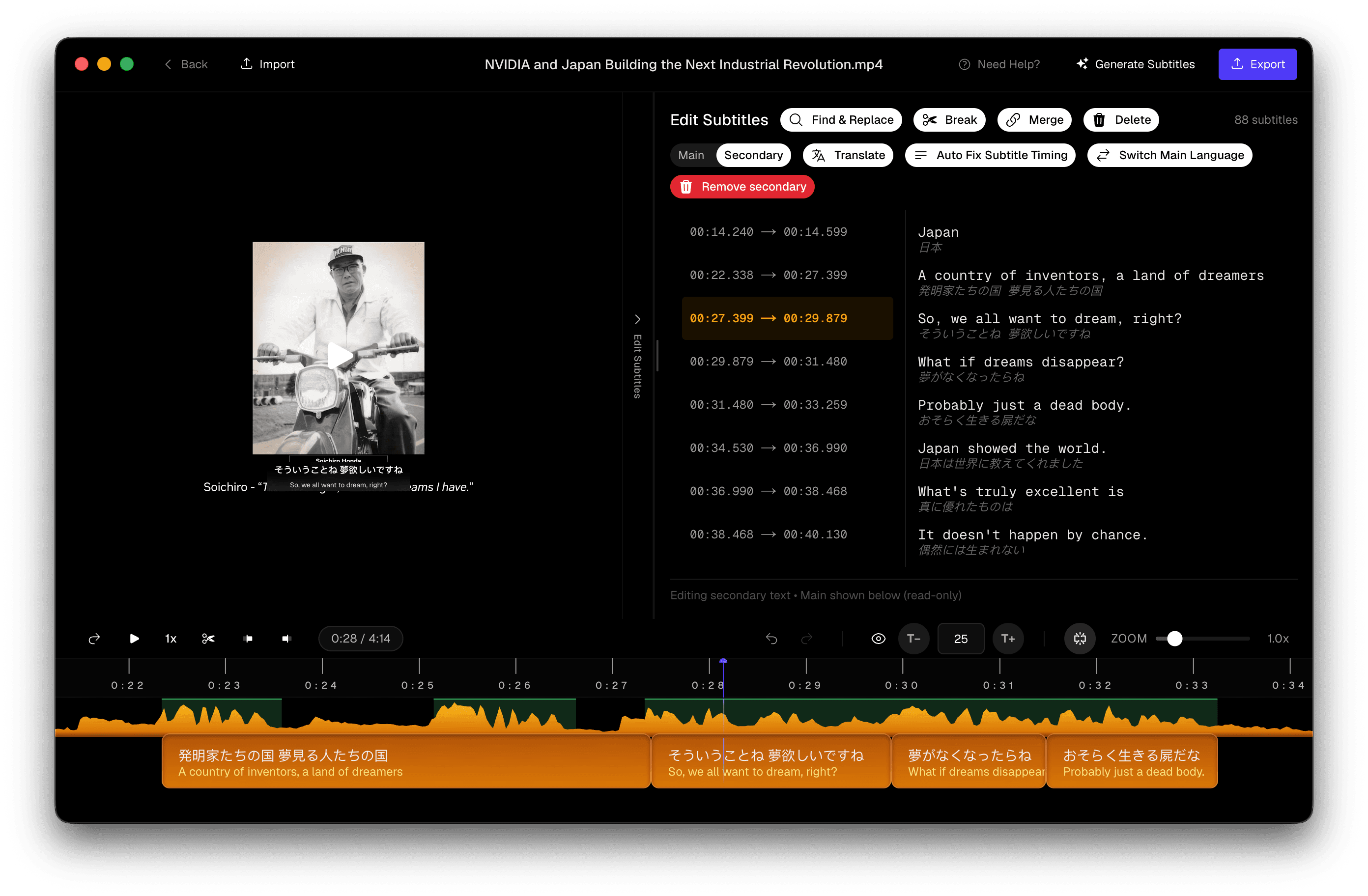 Subtitle Studio translating subtitles on-device — subtitle text is processed locally with no cloud upload
This is fundamentally different from sending your SRT to Google Translate, DeepL, or a cloud LLM API. Those services receive your full text over the network. Subtitle Studio's built-in engine keeps everything on-device.
Offline vs Cloud Translation
Most subtitle workflows today rely on cloud translation — either a dedicated MT service or an LLM API like OpenAI, DeepSeek, or Grok. Cloud options can produce excellent results, but they come with trade-offs that matter for video creators and professional translators.
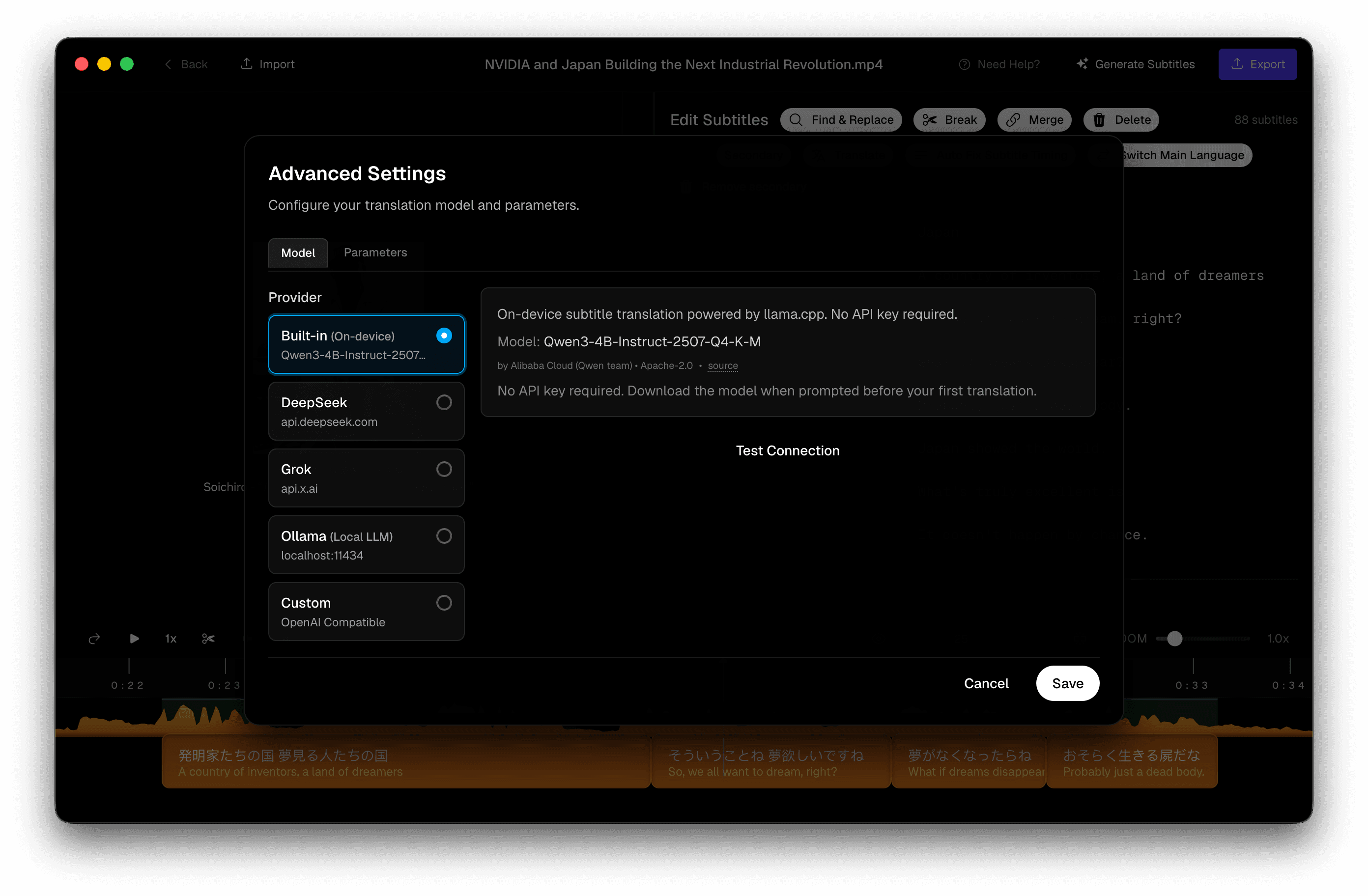 Subtitle Studio LLM settings showing Built-in (On-device) alongside cloud API provider options
When offline wins: unreleased film or TV content, client NDAs, travel without reliable internet, high-volume translation where API costs add up, or simply wanting a one-time-purchase tool with no ongoing fees.
When cloud wins: you need the absolute highest quality from a frontier model (GPT-4, Claude, etc.), you're on an Intel Mac where the built-in engine isn't available, or you want faster batch processing on very long files.
Subtitle Studio supports both. Built-in on-device translation is the default. You can switch to DeepSeek, Grok, Ollama, or any OpenAI-compatible endpoint in settings if you prefer.
Which Languages Can You Translate Into?
Built-in offline translation supports 25 target languages, each tuned for short, readable subtitle lines — the kind social media viewers scan in seconds.
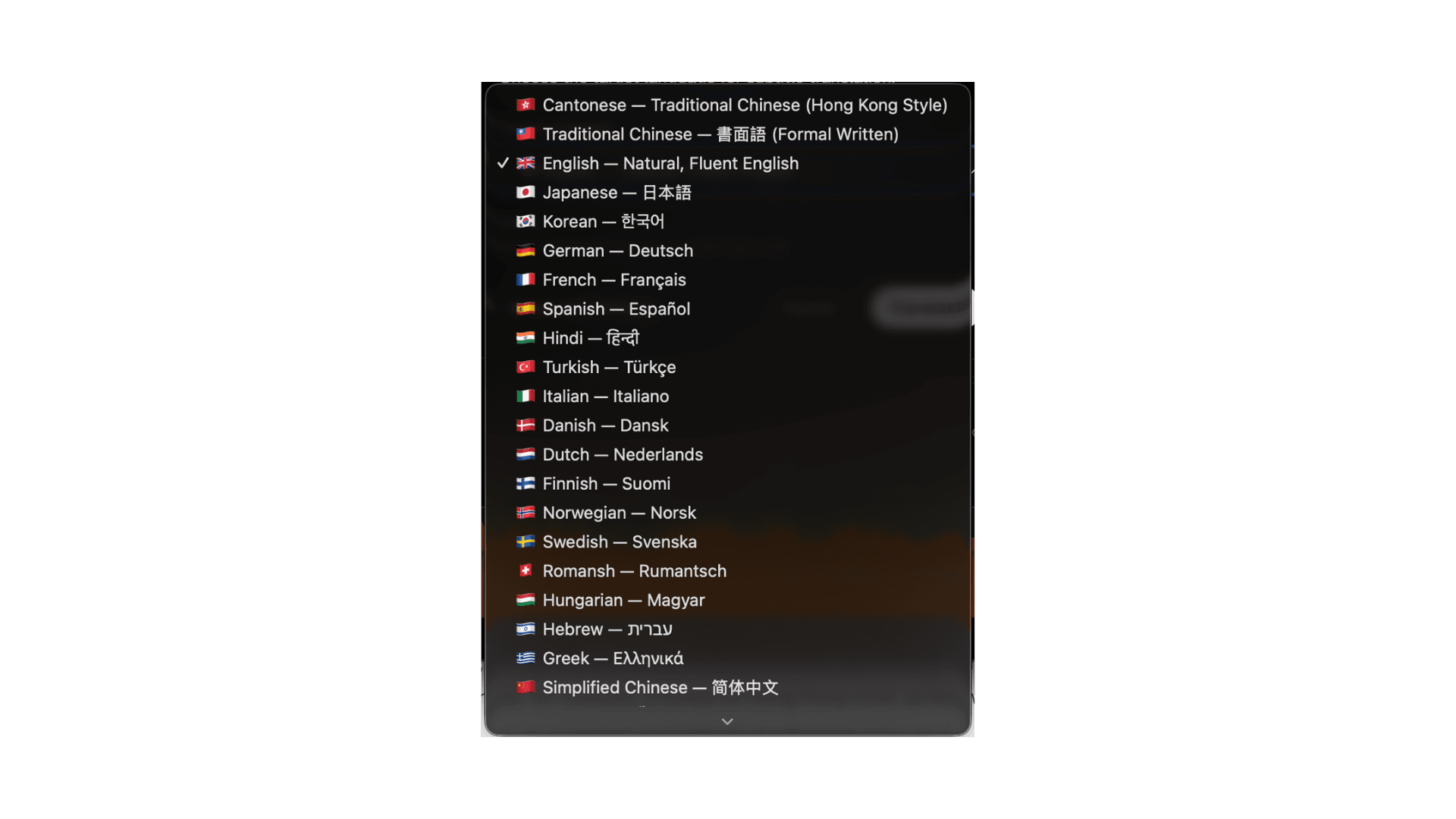 Subtitle Studio translation language picker showing all 25 supported target languages
Source language is auto-detected. You don't pick "English to Japanese" or "Korean to Spanish." You pick your target language, and the model figures out what language the subtitles are in. That makes it practical for multilingual source material — a podcast clip in English with a few Korean phrases, or a documentary with mixed dialogue.
Each language has per-language tuning: readability guidance, semantic translation rules (slang and exaggerations become natural equivalents, not literal word swaps), and constraints like keeping numbers as Arabic numerals where appropriate. Cantonese, for example, is tuned for Hong Kong-style spoken wording with sentence-final particles used sparingly.
How It Works Under the Hood
Subtitle Studio ships a local large language model purpose-built for subtitle translation — not a generic machine translation engine like Google Translate or OPUS-MT.
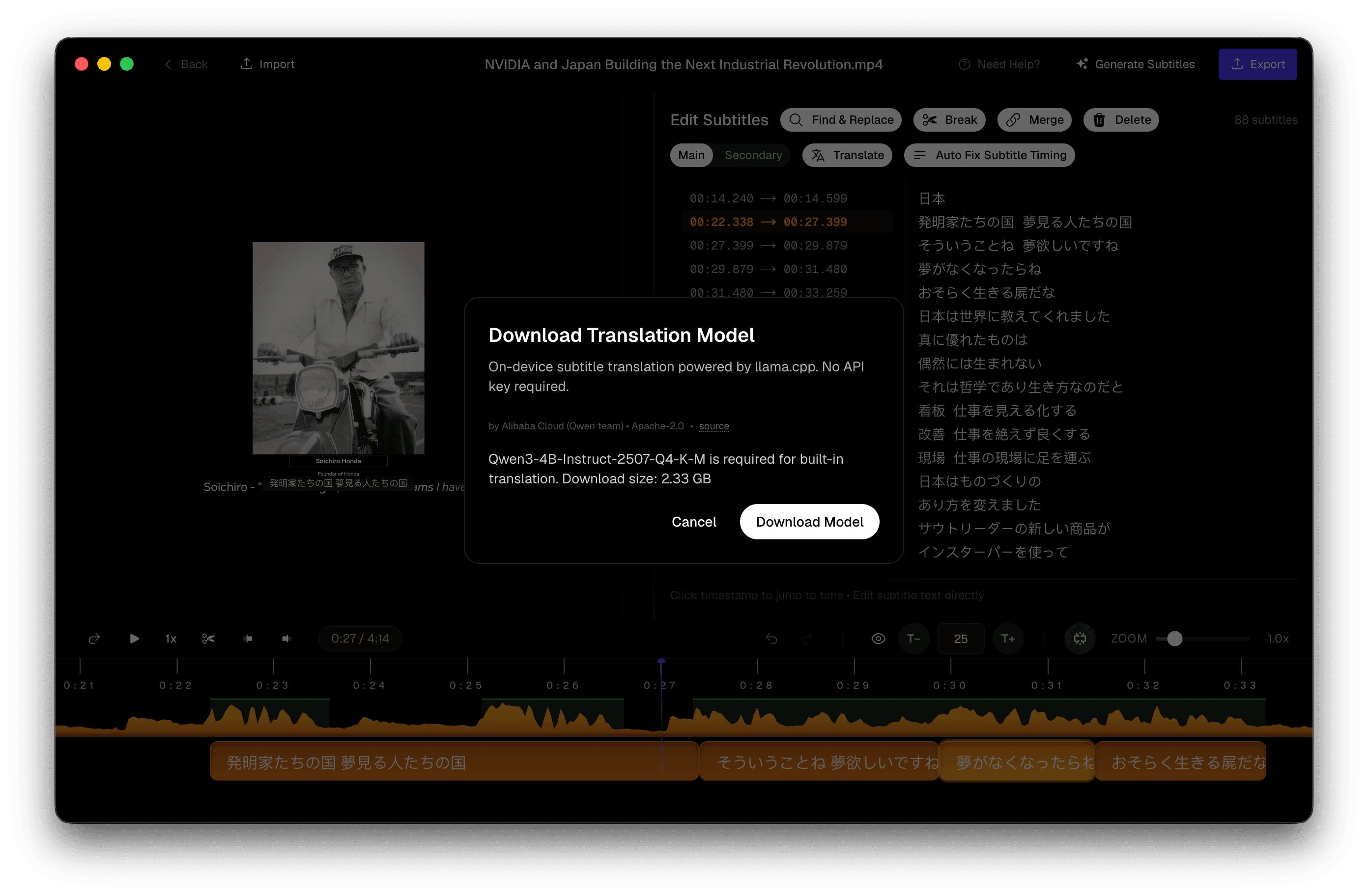 Subtitle Studio built-in translation model download prompt showing Qwen3-4B model details
The model: Qwen3-4B-Instruct
The built-in engine uses Qwen3-4B-Instruct-2507, quantized to Q4_K_M GGUF format (~2.5 GB). It's a capable instruction-following model from Alibaba's Qwen team (Apache-2.0 license), small enough to run comfortably on Apple Silicon Macs and Windows PCs while still handling nuanced, context-dependent translation.
The engine: llama.cpp + Metal
Inference runs through llama.cpp, compiled as a native Node addon with Apple Metal GPU acceleration. The model loads onto your GPU (nGpuLayers: 99), keeping translation responsive without blocking the UI — inference runs in a dedicated worker thread. On Windows, the same llama.cpp engine runs locally on your PC.
Context-aware, line-by-line translation
Subtitles aren't paragraphs. A single line like "That's insane" might mean excitement, disbelief, or sarcasm depending on what came before. Subtitle Studio uses a sliding context window — 6 lines before and 2 lines after the current line — so the model understands tone, references, and register before translating.
Translation is semantic, not literal. The prompts explicitly instruct the model to convert slang and exaggerations into natural target-language equivalents rather than word-for-word swaps.
Guaranteed 1:1 line mapping
Every input subtitle line produces exactly one output line. If the model fails on a line, Subtitle Studio falls back to the source text rather than dropping or merging lines — critical when your timecodes depend on a fixed number of entries.
Session management
The model maintains a persistent chat session with a rolling KV cache for efficiency across lines. When the 4096-token context window fills up (~70%), the session resets automatically so long files don't crash mid-translation.
Getting Started in the App
Using offline translation takes two steps inside Subtitle Studio. Built-in on-device translation is selected by default — no provider setup or API key required.
Step 1: Pick a target language
Click Translate in the editor. A language picker opens with all 25 supported targets. Select your language and confirm. Subtitle Studio remembers your last choice.
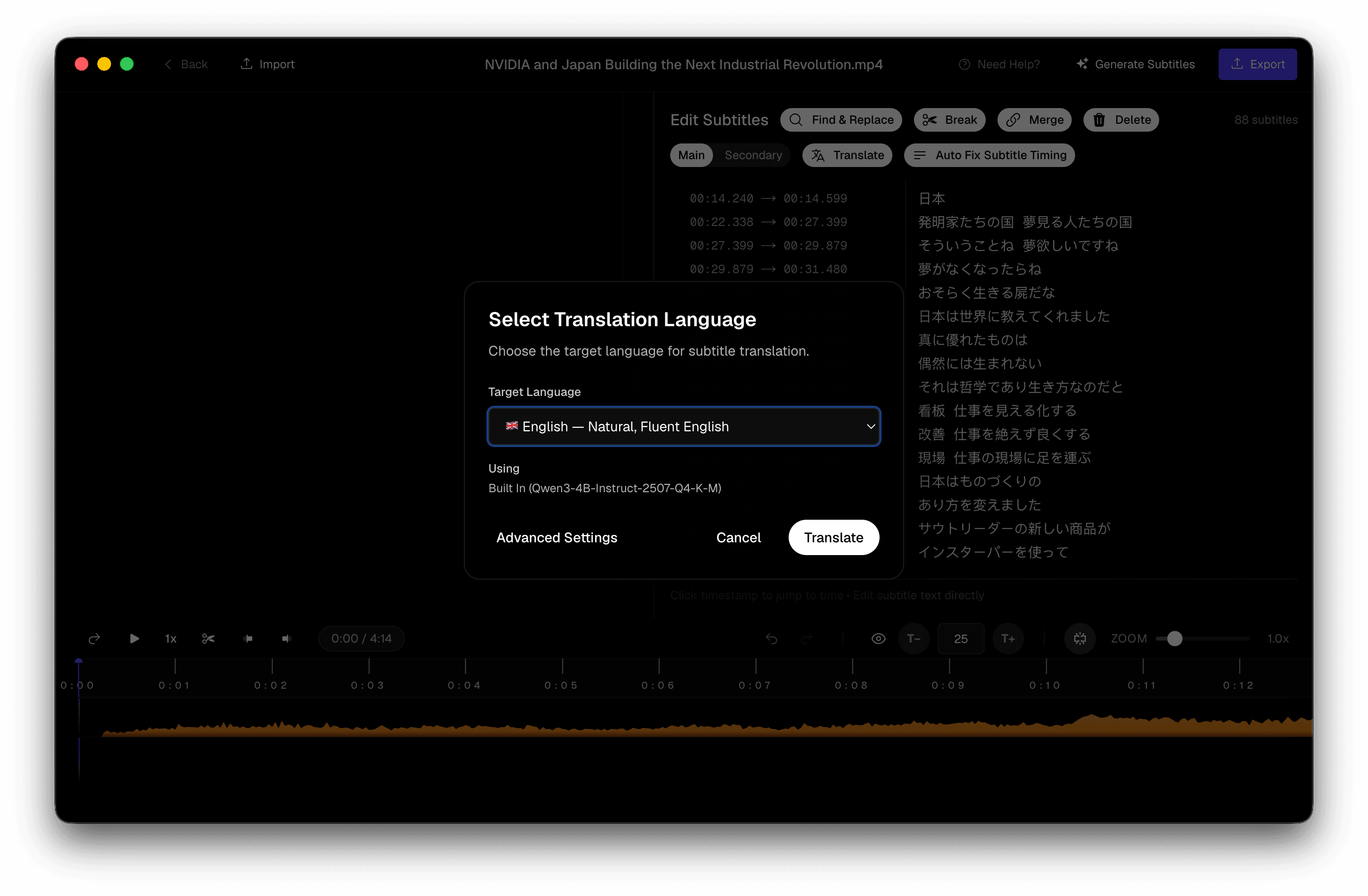 Subtitle Studio target language picker with Built-in translation selected
Step 2: Download the model (first time only)
On your first translation, Subtitle Studio prompts you to download the ~2.5 GB model file. The download is:
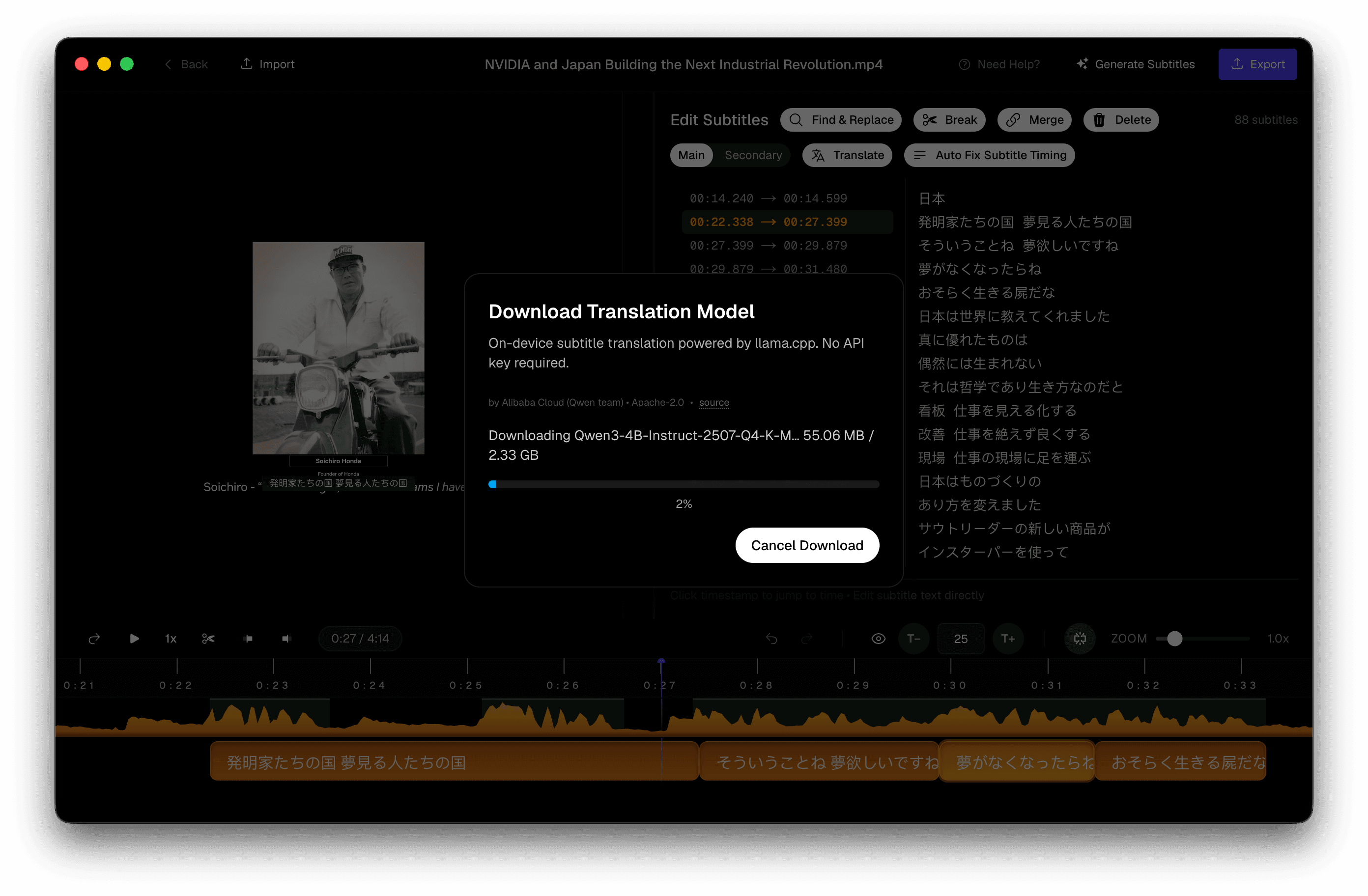 Subtitle Studio translation model download progress showing ~2.5 GB Qwen3-4B download
- Chunked and resumable — if it interrupts, pick up where you left off
- Verified on disk — corrupted downloads are detected and re-fetched
- Stored locally in your app data folder, not re-downloaded on every launch
Once the model is on disk, translation starts immediately. Progress shows per-line as each subtitle is translated. You can cancel mid-run.
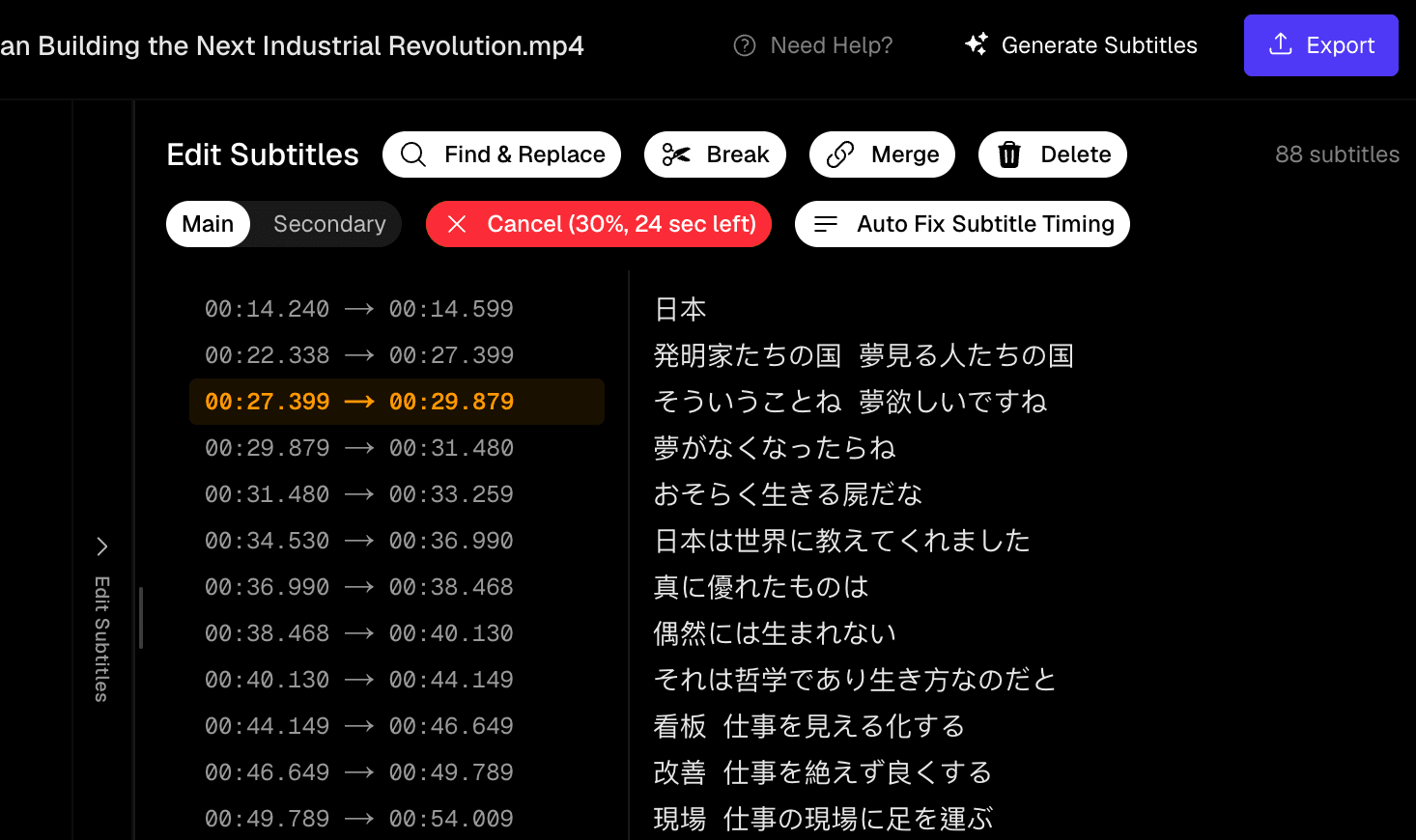 Subtitle Studio editor showing per-line subtitle translation progress
After the initial download, everything works offline. Translate on a plane, in a Faraday cage, or on a computer with no outbound network access.
Who Is This For?
Offline subtitle translation is built for people who translate video content regularly and care about privacy, cost, or connectivity:
- Video creators and YouTubers translating clips for multilingual audiences without paying per API call
- Social media editors localizing short-form content (Reels, TikTok, Shorts) into 25 languages
- Professional subtitle translators working on unreleased film, TV, or corporate video under NDA
- Podcast producers generating translated caption tracks for video versions of episodes
- Localization teams who need a reliable offline fallback when cloud services are unavailable or blocked
If your workflow is already in Subtitle Studio — transcribe with Whisper, edit timing on the waveform, export SRT — translation slots in without leaving the app or exporting to another tool.
Limitations Worth Knowing
Honest expectations help you choose the right tool:
- Apple Silicon Mac or Windows PC for the built-in engine. Intel Macs can use cloud providers or Ollama instead.
- One-time download requires internet. The model isn't bundled in the app installer (~2.5 GB). You need connectivity for that first download only.
- Smaller model, very good — not frontier. Qwen3-4B produces strong subtitle translation, especially with context-aware prompts, but it won't match GPT-4 or Claude on highly idiomatic or literary content. Switch to a cloud provider in settings if you need maximum quality.
- Line-by-line speed. Built-in translation processes one line at a time with context (reliable, but slower than cloud batching). Long files take longer than a cloud API with batch size 12.
- 25 target languages. Source language detection covers many inputs, but you can only translate into the 25 supported targets listed above.
Subtitle Studio
One-time purchase. Runs fully offline on Mac and Windows.
Frequently Asked Questions
Do I need an internet connection to translate?
Not after the initial model download. The first time you translate, Subtitle Studio downloads the ~2.5 GB Qwen3-4B model to your computer. Once that's on disk, translation works completely offline — no Wi-Fi, no cellular, no outbound network calls.
Is my subtitle content private?
Yes. With the built-in on-device provider, your subtitle text is processed entirely on your computer by the local model. Nothing is sent to Subtitle Studio's servers or any third-party API. This is the main reason creators working on unreleased content choose offline translation.
Which computers support built-in offline translation?
Built-in translation runs on Apple Silicon Macs (M1, M2, M3, M4, M5 or later) running macOS, where the engine uses Metal GPU acceleration via llama.cpp, and on Windows 10/11 (64-bit) PCs. Intel Macs can still translate using cloud providers (DeepSeek, Grok, OpenAI-compatible APIs) or a local Ollama instance.
How good is the translation quality?
Very good for subtitle use cases — short, readable lines tuned for social media and video viewers. The model handles slang, tone, and context better than traditional machine translation because it uses a sliding context window and semantic (meaning-based) prompts. For highly literary or technical content where every nuance matters, cloud frontier models may produce better results. Subtitle Studio lets you switch providers without changing your workflow.
Can I use a cloud model instead of the built-in one?
Yes. Subtitle Studio supports DeepSeek, Grok, Ollama, and any OpenAI-compatible custom endpoint. Configure your provider and API key in Settings → LLM Configuration. Cloud translation is faster for long files and can access larger models, but your subtitle text is sent to the provider's API.
What file formats can I translate?
Translation works on subtitles already in your Subtitle Studio project — whether you transcribed them with Whisper, imported an SRT/VTT file, or typed them manually. The translated output stays in your project with the same timecodes, ready to export as SRT or burn into video.
Does offline translation cost extra?
No. Built-in on-device translation is included with Subtitle Studio. There are no API fees, no per-word charges, and no subscription. The only "cost" is the one-time ~2.5 GB download and disk space on your computer.
Can I translate the same file into multiple languages?
Yes. Translate into one target language, review and edit the result, then run translation again with a different target language. Each run produces a new set of subtitle lines while preserving your original timecodes.
Try Subtitle Studio for free
One-time purchase. No subscription. Runs fully offline on Mac and Windows.
